If you need to change the owner of a group that has already been set up in Engage, you can easily do that. You can change the owner on one group or multiple groups, simultaneously.


To change the owner of a group

  1. Once logged in to Engage, navigate to the settings section by clicking the cog icon in the top right-hand corner of your screen.
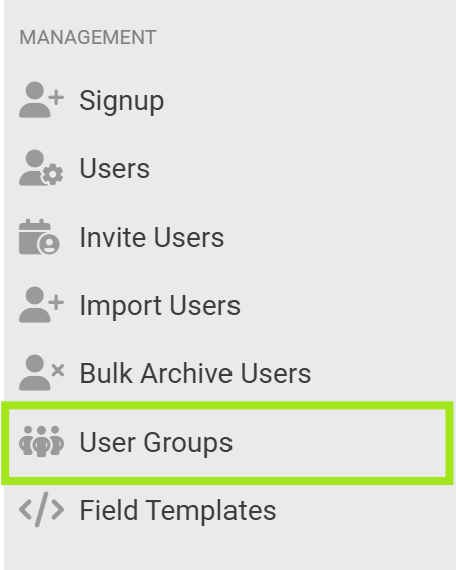
  2.  Click ‘User Groups’ in the navigation.A vertical navigation menu under the heading “MANAGEMENT”. The menu contains options with icons: Signup, Users, Invite Users, Import Users, Bulk Archive Users, User Groups, and Field Templates. The “User Groups” option is highlighted with a bright green border, indicating it is currently selected. The interface has a light gray background with dark gray text and icons.
  3. On the ‘Groups’ page, under the Owner column, select the icon of the owner currently assigned to the group.
    A row in a content or book management system showing a selectable item. On the left is a checkbox, followed by the title “Grade 10 English” in blue text. Beneath the title is a green “JOINABLE” label and the text “Hardcopy and Digital.” In the center is a yellow tag labeled “Grade 10 (CAPS).” To the right, the number 14 is displayed, and on the far right there is a blurred user profile icon and name. The row is displayed on a light gray background.
  4. An ‘Owner’ pop-up opens. Change the owner of the group by starting to type the name of the new owner in the ‘Search owner’ field and selecting the applicable name from the list of suggestions. Alternatively, select ‘Make me the owner’ to assign ownership to yourself.

    A modal dialog titled “Owner” is displayed. Below the title is a search field with the placeholder text “Search owner...”. To the right of the search field is a user icon and a blue link labeled “Make me the owner.” At the bottom-right of the dialog are two buttons: a highlighted “Save” button and a “Close” button. A close (×) icon appears in the top-right corner of the modal. The dialog has a white background with light gray borders and spacing. 
  5. Click the ‘Save’ button to assign the new owner to the selected group.


To change the owner on multiple groups

To bulk-assign an owner to multiple groups simultaneously:

  1. Once logged in to Engage, navigate to the settings section by clicking the cog icon in the top right-hand corner of your screen.
     
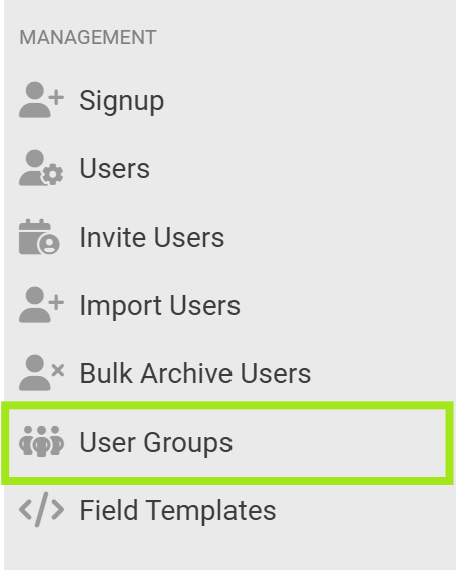
  2. Click ‘User Groups’ in the navigation.A vertical navigation menu under the heading “MANAGEMENT”. The menu contains options with icons: Signup, Users, Invite Users, Import Users, Bulk Archive Users, User Groups, and Field Templates. The “User Groups” option is highlighted with a bright green border, indicating it is currently selected. The interface has a light gray background with dark gray text and icons.
  3. On the ‘Groups’ page, select the checkbox next to the groups you want to assign a new owner to.

    A user groups management page with “ALL” and “ARCHIVED” tabs at the top, with “ALL” selected. A table lists user groups with columns for Name, Grade, Total Users, and Owner. Three groups are visible: Android, Successful Student Group, and Books 24/7 Students (Demo). The Android and Books 24/7 Students groups display a green “JOINABLE” label beneath their names. Each row includes a short description, grade information, user count, and an owner profile image with a blurred name. Checkboxes appear beside each group, and pagination controls in the top-right indicate “Showing 1–50 of 58” with page 1 currently selected.
  4. Click the ‘Add Owner’ button.
    A rectangular button with a light background and a thin green border. The button contains a green plus (+) icon followed by the text “Add Owner” in green. The button appears to be an action control for assigning or adding an owner.
  5. An ‘Add Owner’ pop-up opens. Change the owner of the group by starting to type the name of the new owner in the ‘Owner’ field and selecting the applicable name from the list of suggestions. Alternatively, select ‘Make me the owner’ to assign ownership to yourself.

    A modal dialog titled “Add Owner” is displayed. The dialog contains an Owner field with the placeholder text “e.g. Snapplify” and helper text below that reads “The Owner associated with the Group.” To the right of the field is a partially visible user profile image and a blue link labeled “Make me the owner.” At the bottom-right are two buttons: a green “Save” button and a red “Close” button. A close (×) icon appears in the top-right corner of the modal. The interface has a clean white background with light gray dividers.
  6. Click the ‘Save’ button to assign the new owner to the selected groups.


You can edit user groups further by adding or removing users.
Need help? Use the live chat in the bottom right corner of your screen. Email us at help@snapplify.com or reach out via Whatsapp +27 60 011 8065.