Ordering your child’s school stationery in Engage is quick, easy, and stress-free. Everything is in one place, making it simple to review and buy exactly what’s needed for the school year, without the hassle of going from store to store.


Just follow these steps to get started:


1. Set Up Your Child’s Account

  • Sign in to Engage.
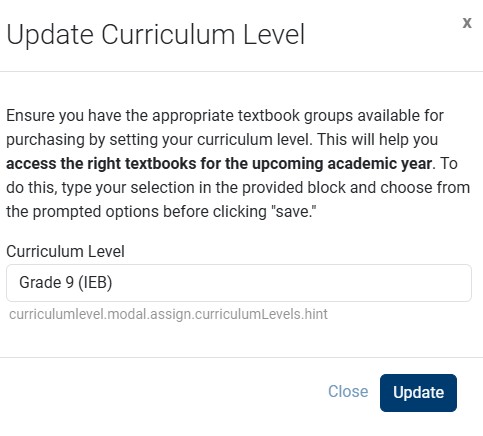
  • Check that the correct curriculum level is selected. This ensures that the correct grade list is linked to their profile. Popup window titled 'Update Curriculum Level' showing a dropdown to select a curriculum level, with 'Grade 9 (IEB)' selected and options to Close or Update the selection.
  • Join the relevant group Screen showing a user joined to the 'Grade 9 Learners' group, with a visible 'Grade 9' tag and a blue 'Leave ×' button to exit the group.


2. View Your Products

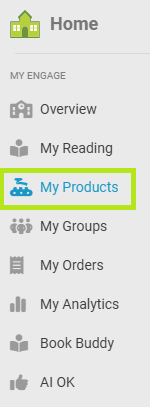
  • In the left-hand menu, go to 'My Products'. Navigation menu in Engage with 'My Products' highlighted in red, indicating the user should select this option. Other menu items include Overview, My Reading, My Groups, My Orders, My Analytics, Book Buddy, and AI OK.
  • Review the items in the 'My Products Cart'; the first page will show the textbooks selected by your institution. My products Cart with the details that the content may be both digital and physical books. Advises to confirm and once payment is made that digital content will be avilable through the Reader.

  • Remove any items you don’t want:
  • Uncheck the box next to the item price, or
  • Select the checkbox next to the titles and 'Remove' 
  • Proceed to the next page when ready.


3. Review and Edit Stationery List

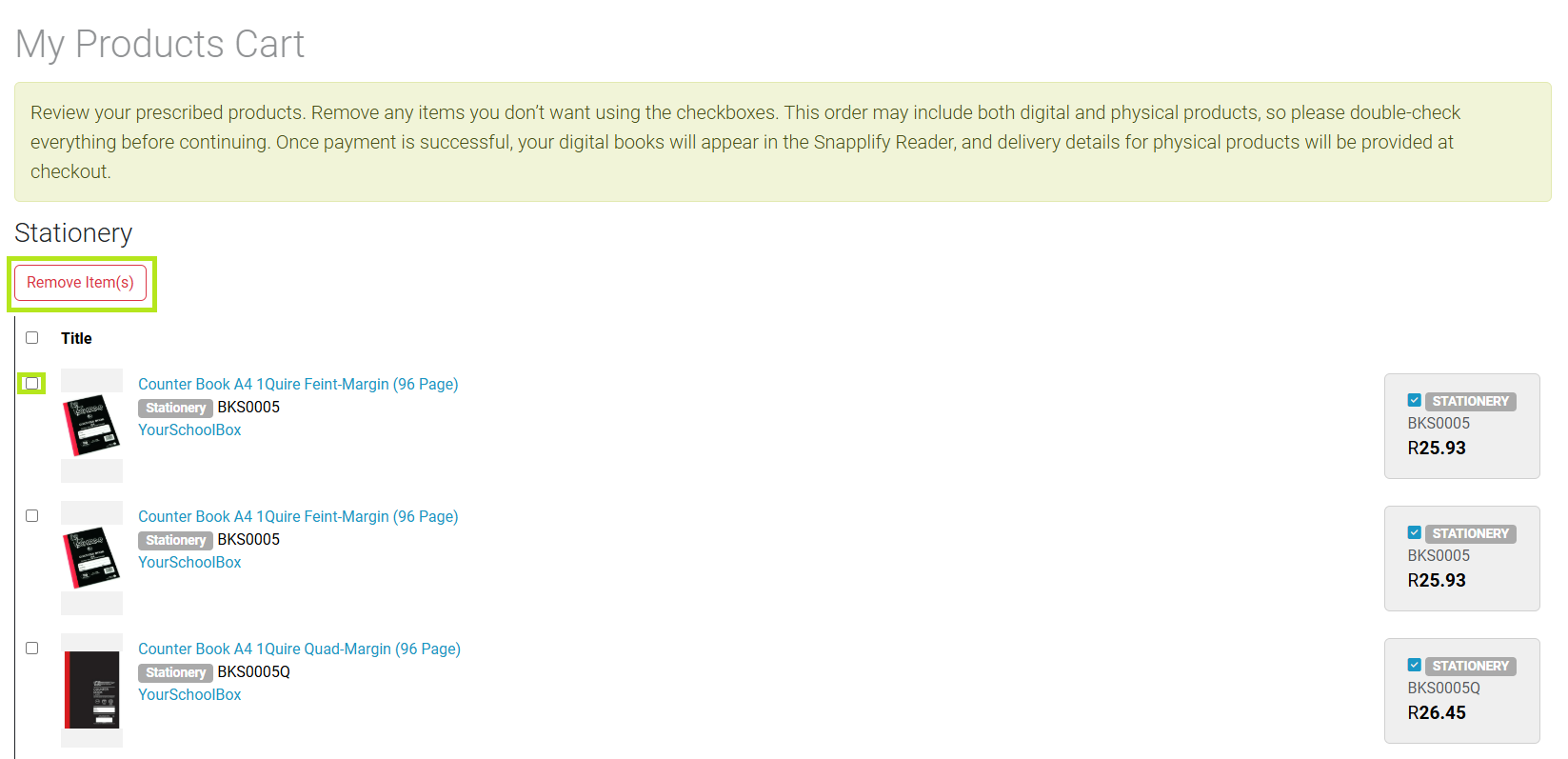
  • You'll see a list of recommended stationery.
  • Remove any items you don’t want:
  • When ready, proceed to the next step. Engage dashboard showing the 'My Products' section with a list of stationery items. Several items are selected using checkboxes on the right, and a red 'Remove Item(s)' button is displayed at the top to delete selected products from the cart.


4. Fill in Additional Information

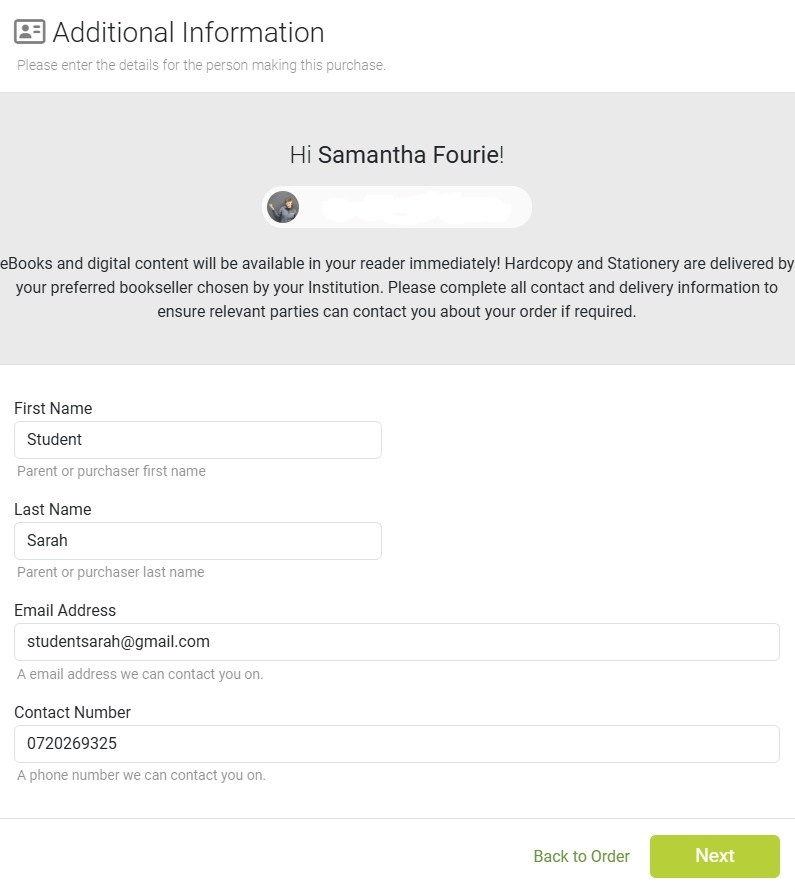
  • Enter your personal details (not your child’s).
  • Select 'Next' to continue. Additional Information screen in Engage showing user details form. Fields include First Name, Last Name, Email Address, and Contact Number. A message informs the user that digital items will be available immediately and that physical items will be delivered by the institution’s bookseller. A 'Next' button is visible at the bottom right.


5. Provide Delivery Information

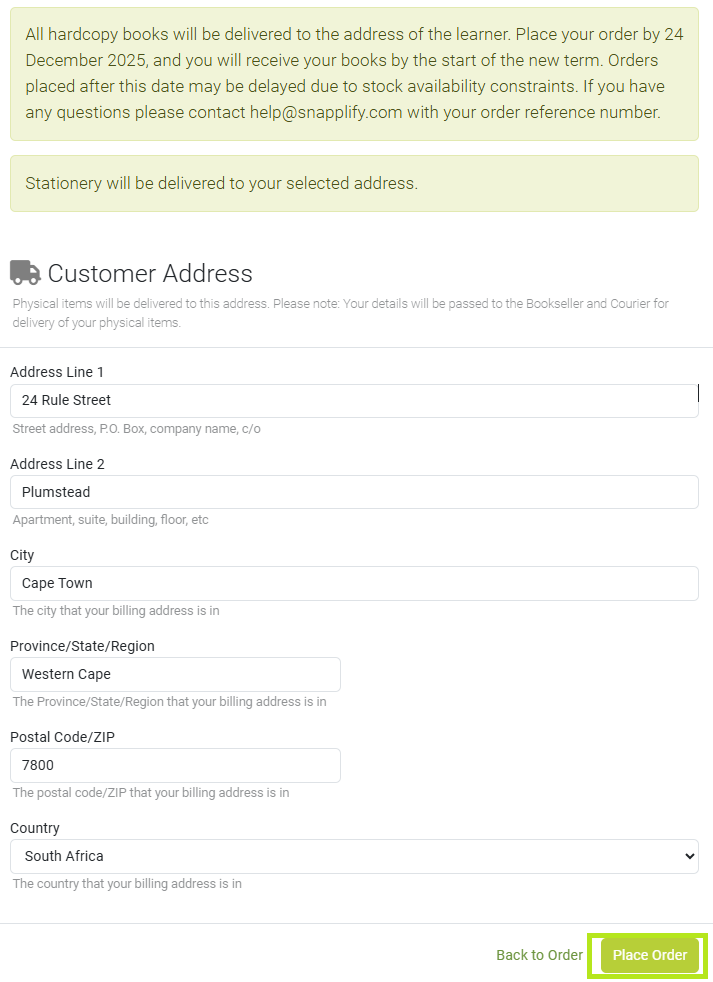
  • Add the delivery address.
  • If your school has arranged delivery, use the school’s address.
  • 'Place Order' your order. Delivery address form in Engage with a notice about hardcopy book delivery deadlines. Users must enter their address details including city, postal code, and country. A yellow-highlighted button labeled 'Place Order' is visible at the bottom right.


6. Complete Payment

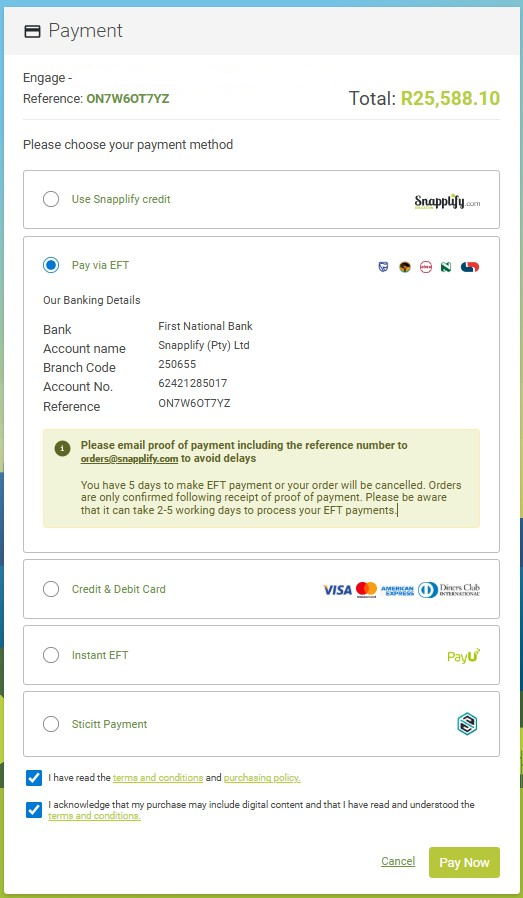
  • Choose your payment method.
  • Accept the terms and conditions
  • Proceed to payment 'Pay Now'. Payment screen in Engage showing multiple payment options including Snapplify credit, EFT, credit and debit card, Instant EFT, and Sticitt Payment. EFT option is selected, displaying bank details and a note instructing users to email proof of payment to avoid delays. Total amount due is R25,588.10, and a yellow 'Pay Now' button is at the bottom right.
If you are using Snapplify Credit you may be requested to sign in again.


7. View Your Order

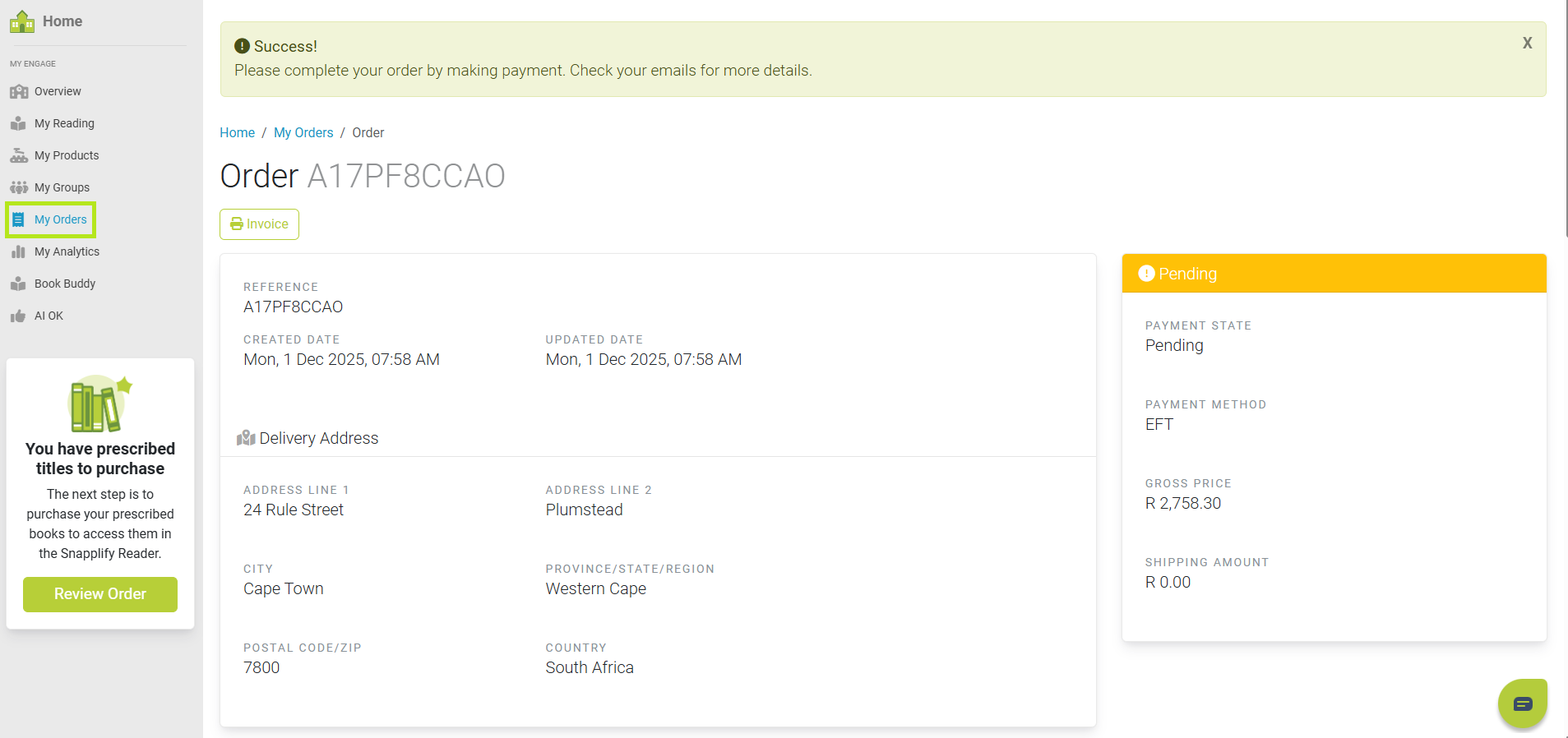
  • After payment, you’ll see a confirmation screen.
  • Your order details will be available under 'My Orders' tab. Shoing the 'My orders' tab on the menu bar on the lefthand side. With the order information to the right in the main screen.

Need help? Use the live chat in the bottom right corner of your screen. Email us at help@snapplify.com or reach out via Whatsapp +27 60 011 8065.