Get a head start on the new academic year by setting up next year’s stationery product lists in Engage. Preparing your lists early helps simplify the purchasing process for educators, students, and parents.
With stationery product lists, you can compile and share required items in one place. This saves time, removes the need to search for individual products, and ensures that everyone gets exactly what they need.
To create a product list, follow these steps:
1. Open the Product List Page
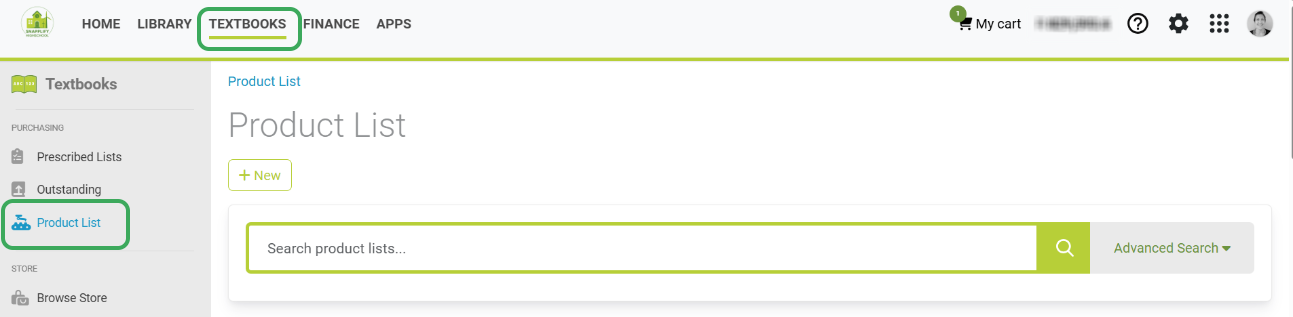
- Go to 'Engage' and select Textbooks from the main menu. This will take you to the 'Product List' page.
2. Create a New Product List.
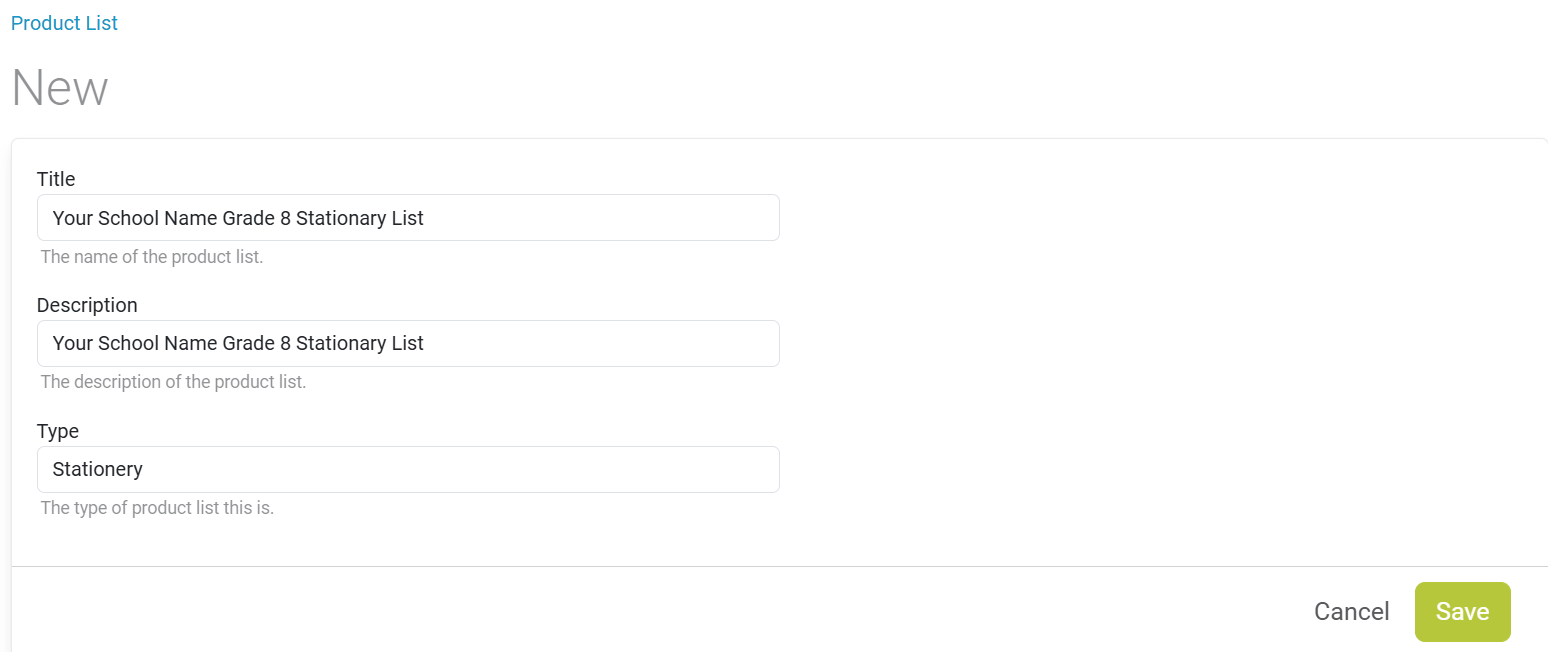
- Select 'New' to start a new list.

Fill in the required fields:
- Title: Use a clear and specific name, e.g., Your School Name Grade 12 Stationery List, to make it easy to find later.
Description: You can repeat the name or provide a short context.
- Type: Always set this to Stationery.
3. Add Items to the Product List
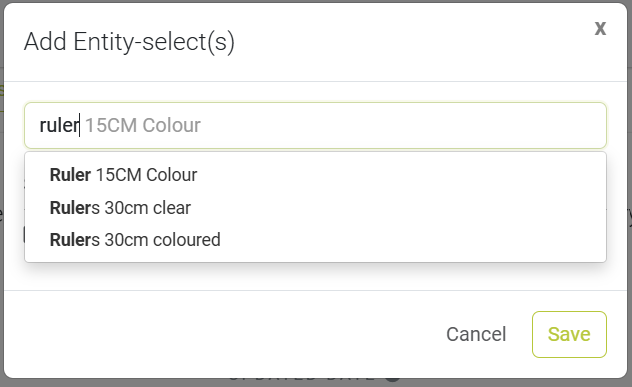
- Use the item name to search for what you need.
NOTE: If you're unable to find a specific item, send your full stationery list or the missing items to help@snapplify.com for assistance.
4. Save the Product List
Once all items are added, select 'Save'.
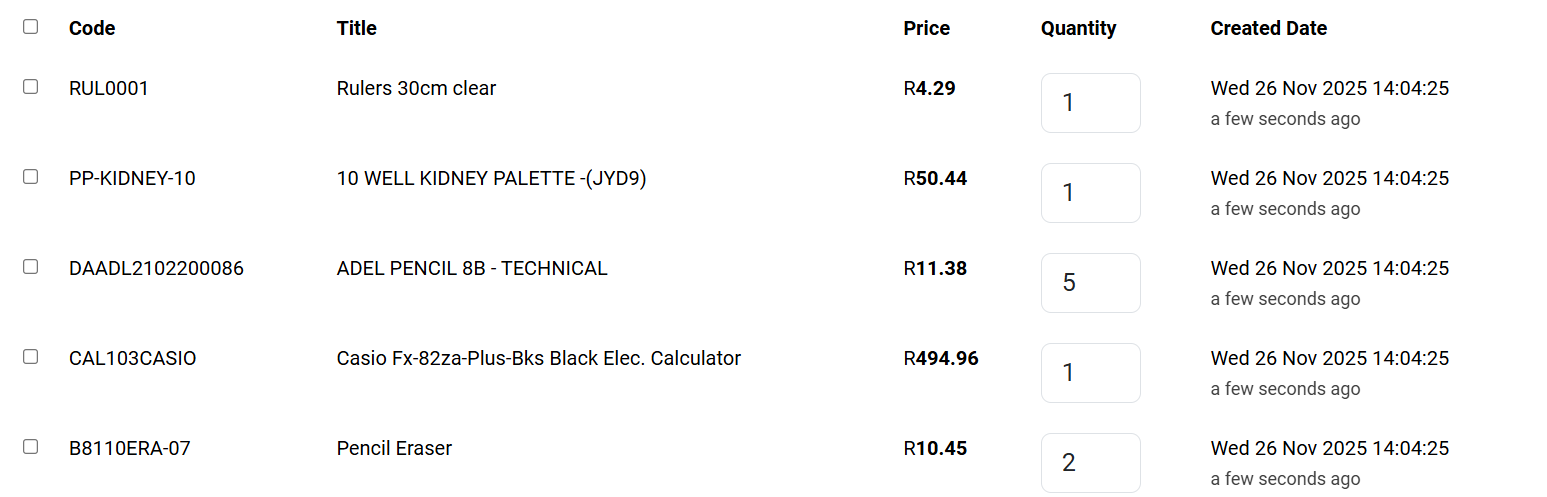
You’ll return to your Product List page, where all items will be visible.

5. Set Quantities
- Add the required quantity for each item on the list.
6. Link to a Group and Publish
- Once you are satisfied with the items and quantities, link the list to the relevant group

Then select Publish to make the list available

Need help? Use the live chat in the bottom right corner of your screen. Email us at help@snapplify.com or reach out via Whatsapp +27 60 011 8065.


