This guide walks you through connecting your school's Canva for Education platform to Snapplify using SAML-based Single Sign-On (SSO). Once set up, staff and learners can use their school login credentials to securely and easily access Canva, with Snapplify as the identity provider (IdP) and Canva as the service provider (SP).
What you need before you start
Make sure your school has the following:
A Canva for Education admin account with access to SSO settings
Access to Snapplify SSO settings. Reach out to help@snapplify.com
Step-by-step setup instructions
Step 1: Check Canva account access
Sign into Canva with an admin account
Navigate to the Identity Providers or Single Sign-On section
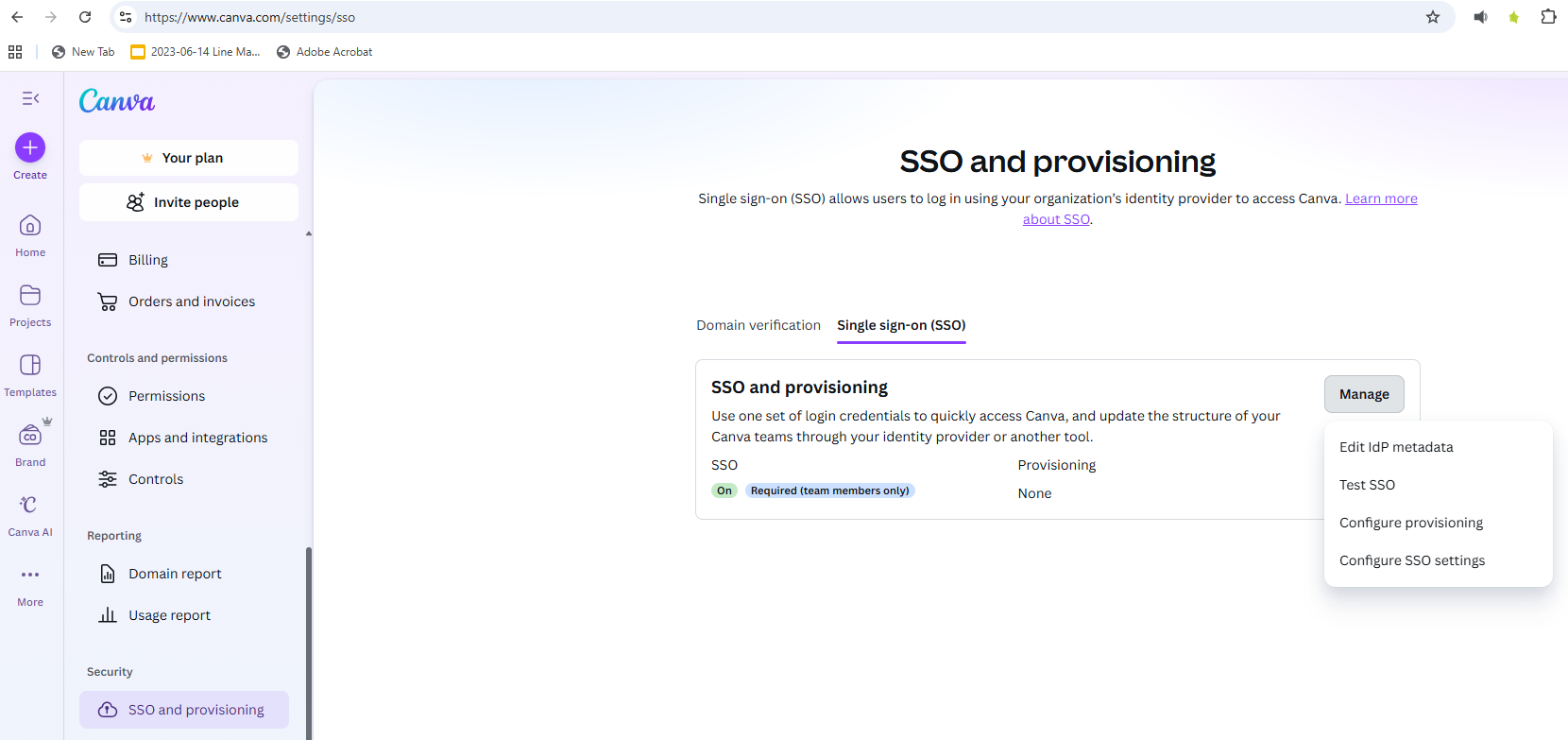
If you can't see these settings, contact Canva Support or your Canva Education account manager to enable SSO for your school
- Use Canva’s official SSO setup guide with this Snapplify guide to ensure the integration is completed accurately.
Step 2: Collect Snapplify SAML values
Copy the full X.059 certificate text provided by Snapplify
Important: Certificates are long text blocks. Any missing or extra character will cause SSO to fail.
Step 3: Add Snapplify as the identity provider in Canva
In Canva SSO setup, paste the values from Snapplify into the required fields:
| SSO sign-in URL | https://saml.snapplify.com/realms/master/protocol/saml |
| Entity ID (also called "Issuer") | https://saml.snapplify.com/realms/master |
| X.509 certificate | Provided upon request |
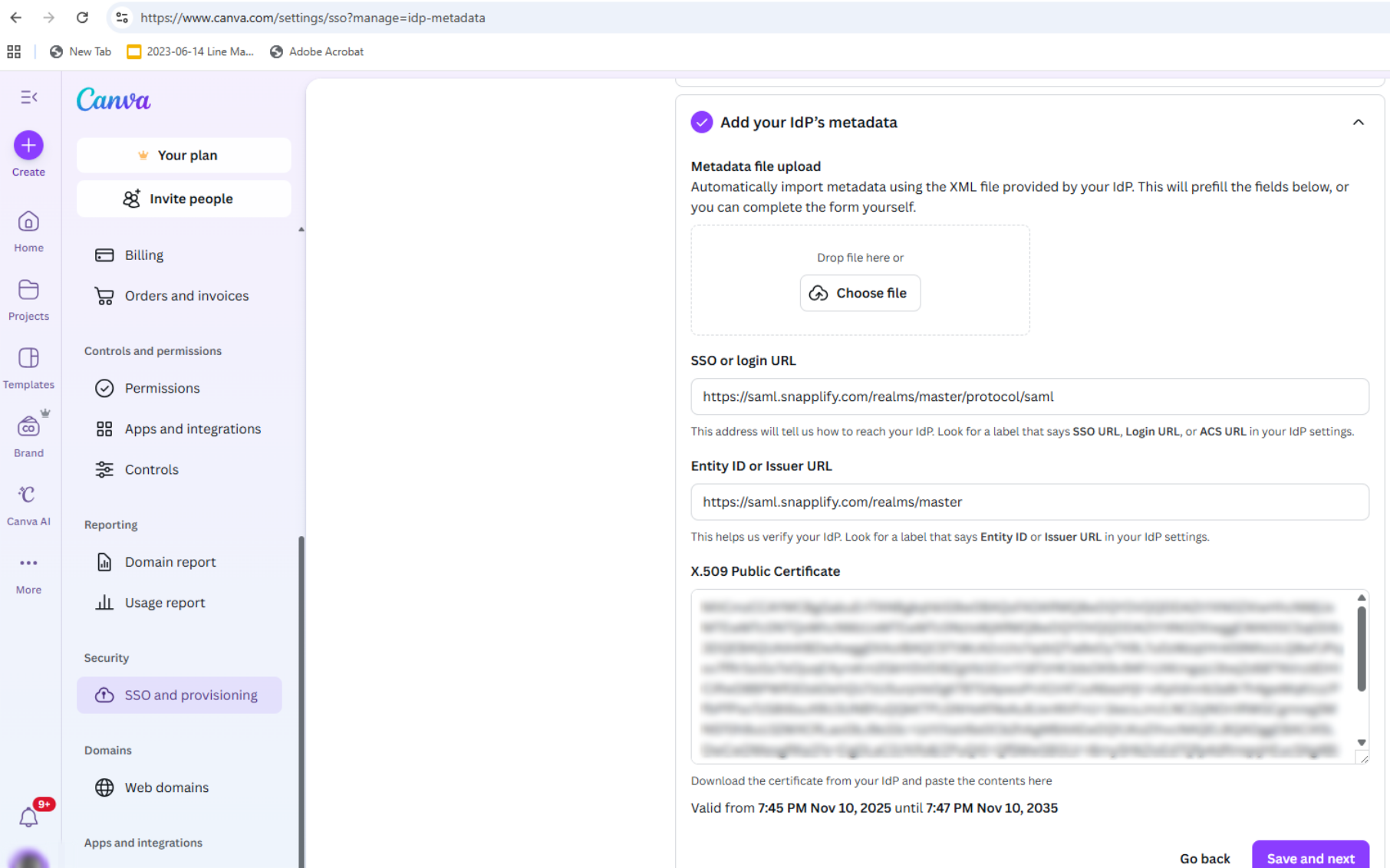
Confirm the following SAML settings in Canva:
- NameID is set to email address format
Assertions are signed
Certificate is required
Testing and enabling SSO for your school
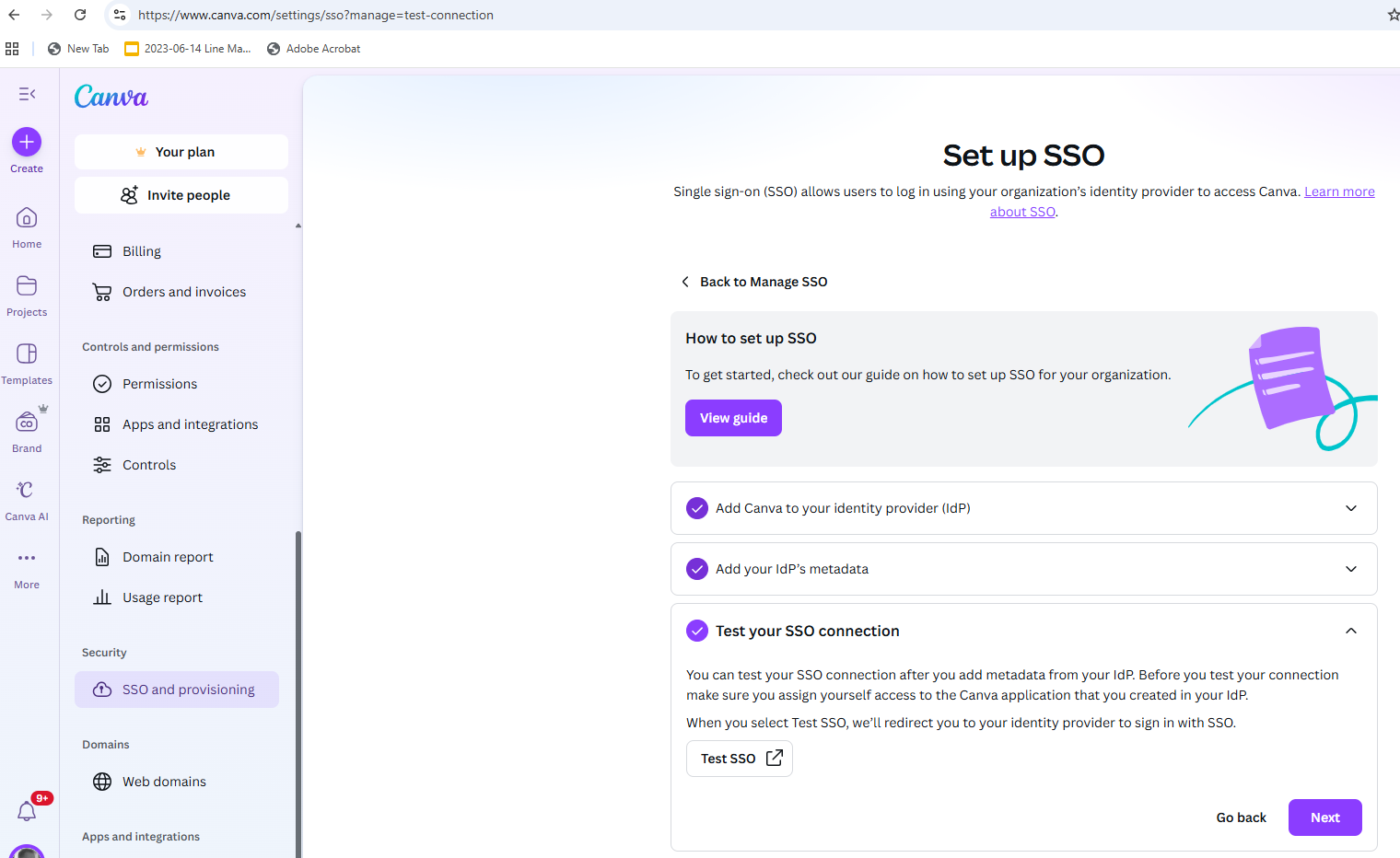
Step 5: Test with a staff account
Test the setup by signing in with one staff account
- Confirm the user is successfully redirected to Canva
- Once confirmed, enable SSO for all users in the Canva admin dashboard
Need help? Use the live chat in the bottom right corner of your screen, email us at help@snapplify.com or reach out via Whatsapp +27 60 011 8065.


